Job interviews
Technical and behavioural questions, with a full solution and code when you need to go deeper.
Them Can you walk me through how you would design a rate limiter?
Accural listens to your calls on Zoom, Google Meet, Teams or any other meeting app, spots the questions your client asks, and shows you a short suggested answer in a small overlay. Only you can see it, even when you share your screen. It also helps you work through school tasks and assignments, step by step.
Got an invite link? Open it to create your account. Accural includes free call time every week.
Works with
Works seamlessly with Zoom, Google Meet, Microsoft Teams and any other meeting app or browser call, and with the platforms you study, apply and pitch on.
Features
Accural follows the conversation with you and steps in exactly when a question lands.
Your microphone and the call audio are transcribed live, so Accural knows who said what.
When the other side asks something, a short answer streams into the overlay while you keep talking.
The overlay stays on top for you and is excluded from screen sharing and recordings.
Ask for a complete answer with code, built from the transcript and your screenshots.
Get a clean summary with decisions and follow-ups when the call ends.
Screenshot an assignment in Google Classroom, Canvas or Moodle and Solve explains it step by step, so you learn the method, not just the answer.
Hosted in the EU. Call content passes through to the AI providers and is never stored by Accural.
The overlay
One window that stays on top of your call, with everything one click or one hotkey away.
Shrink the overlay to a small bar that stays on top. A New answer badge lights up when a suggestion arrives; hover it for a preview, click to expand.
Decisions and follow-ups, written for you the moment you hang up. Export it to Word, Markdown or plain text.
Checked, not assumed
Before the overlay first appears, Accural takes a real screen capture to confirm it's hidden. A crossed-out eye means viewers can't see it.
Need more than talking points? Add a screenshot of the question and get a full solution with highlighted, copyable code.
They work while Zoom, Meet or Teams has focus. Ctrl instead of ⌘ on Windows, and you can change every one.
How it works
No bots joining your meeting, no browser extensions. Accural runs quietly on your Windows PC or Mac.
STEP 01
Open Zoom, Google Meet, Teams or any other meeting app as usual. Accural transcribes your microphone and the call audio live, so it knows who said what.
STEP 02
Accural spots the question and streams a short, clear suggested answer into your overlay while you keep talking.
STEP 03
Need more? Ask for a full solution with code, or get a summary with decisions and follow-ups when the call ends.
Set up in
three steps
Accept your invite
Create your account from the invite link and confirm your email.
Install on Windows or Mac
Download the app for your computer from your dashboard and install it.
Allow this computer
Click Sign in in the app, check the code in your browser, and you're ready.
Use cases
Whenever the right answer counts, Accural has your back.
Technical and behavioural questions, with a full solution and code when you need to go deeper.
Them Can you walk me through how you would design a rate limiter?
Handle product questions and objections on the spot, without “let me get back to you”.
Them How is this different from what we use today?
Stay sharp on scope, estimates and trade-offs, then get a summary with decisions and follow-ups.
Them What would it take to ship this before the end of the quarter?
Answer tricky questions without putting anyone on hold or digging through docs mid-call.
Them Why does the export fail for larger files?
A study helper while you work through homework, assignments and practice problems in Google Classroom, Canvas or Moodle. Take a screenshot of the task and Solve explains the steps, so you understand the method and can check your own work.
You How do I solve this quadratic and check the result?
Privacy and security
Accural helps you in the moment and then forgets. Call content passes through to the AI providers to create your answer and is never stored by Accural.
Read the privacy policyThe website, API and backups run on servers in the European Union.
Transcripts, screenshots and answers are never saved by Accural.
Each computer is approved with a code in your browser and can be signed out at any time.
Protect your account with an authenticator app or a passkey.
Pricing
No subscription. Every account gets free call time every week; after that you use prepaid credits, which never expire.
0 € forever
Everything you need to try Accural in real calls.
One free plan per person: we check for repeat sign-ups from the same connection.
1.00 € per 1,000 credits
After your free time. Credits never expire, and you only pay for what you use.
3,000
3.00 €
10,000
10.00 €
25,000
25.00 €
50,000
50.00 €
100,000
100.00 €
Or any amount from 3,000 credits. Prices before VAT: EU customers pay their country's VAT, customers outside the EU pay none. Card payments by Stripe.
From the blog
Guides 6 min read
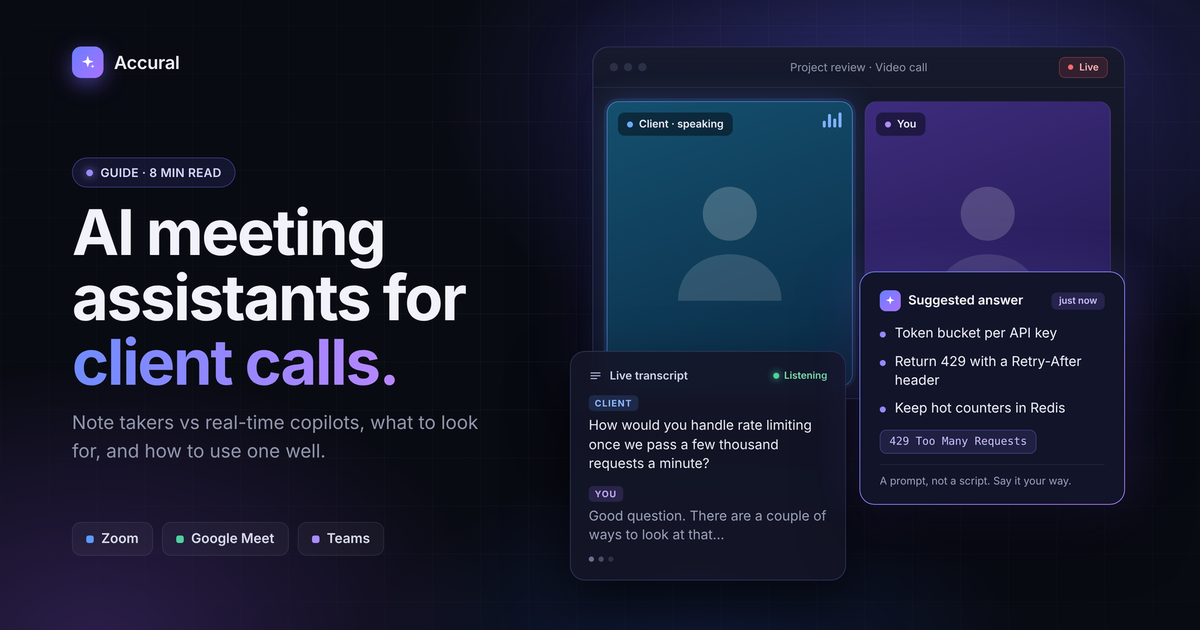
AI meeting assistants fall into two camps: note takers that summarise after the call, and real-time copilots that help while you're talking. This guide explains the difference, what to look for, and how to use one without losing the human side of the conversation.
Read moreInterviews 5 min read
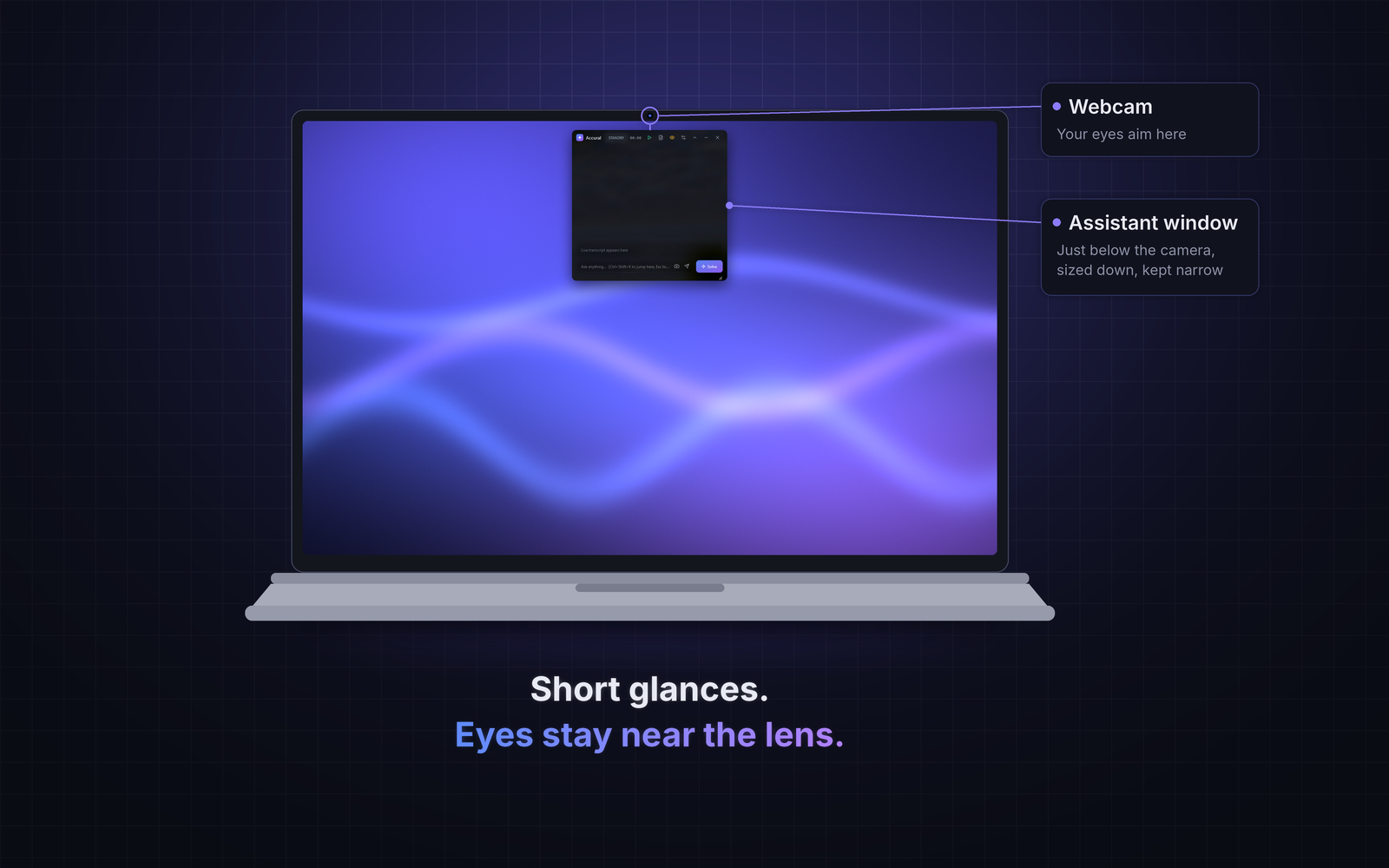
A great answer means little if your eyes keep darting to the corner of the screen. Here is how to position and size your Accural AI copilot window so you stay present, keep natural eye contact, and use suggestions as prompts rather than a script. It also covers why you should still prepare properly.
Read moreNo. The overlay is only on your screen and is excluded from screen sharing and recordings, so the people you share your screen with don't see it.
Accural works seamlessly with Zoom, Google Meet and Microsoft Teams, and with any other meeting app or browser call, such as Webex, Slack or Discord. It listens to your microphone and the call audio on your computer, so there is nothing to install in the meeting itself.
Yes. Accural is a desktop app for Windows 10 and 11 (64-bit) and for macOS 13 Ventura or later on Apple silicon Macs (M1 or newer). The same account works on both, so you can use it on your PC and your Mac.
No. Audio goes straight from your computer to the speech-to-text provider, and transcript excerpts pass through Accural to the AI model only to create your answer. Accural does not store call content, transcripts, screenshots or answers.
accural.eu and its backups are hosted in the European Union, and we follow the GDPR. We only keep your account, your signed-in computers and usage totals, never the content of your calls.
Yes. Besides calls, Accural helps while you work through homework, assignments and practice problems on Google Classroom, Canvas, Moodle, Microsoft Teams or any other learning platform: take a screenshot of the task and Solve explains the steps, or ask a question in your own words. Use it to learn and check your work, and follow your school's rules on AI tools.
You are responsible for telling the other participants and for getting any consent that is required where you and they are located.
Accural listens, understands the question and hands you the answer, quietly, in an overlay only you can see.
Invite only · Free call time every week · Windows and macOS