AI Meeting Assistants for Client Calls: The 2026 Guide
AI meeting assistants fall into two camps: note takers that summarise after the call, and real-time copilots that help while you're talking. This guide explains the difference, what to look for, and how to use one without losing the human side of the conversation.
6 min read
On this page
- What is an AI meeting assistant?
- Note takers vs real-time copilots
- Who gets the most value
- How a real-time copilot works
- What to look for
- How to get the most out of one
- Limits and responsible use
- Frequently asked questions
- Do AI meeting assistants work with Zoom, Google Meet and Teams?
- What is the difference between an AI note taker and a real-time copilot?
- Do I need to tell people I'm using one?
- Can an AI assistant replace preparation?
- Coming up on the blog
AI Meeting Assistants for Client Calls: The 2026 Guide
Most client calls go the same way. You listen, you answer, you try to remember what was decided, and afterwards you piece it together from a few scribbled lines and your memory.
An AI meeting assistant takes some of that load off you. But the term covers very different tools, and picking the wrong kind is the most common mistake. This guide explains what is out there, what to look for, and how to use one well, especially if you take technical calls as a developer, consultant or agency owner.
What is an AI meeting assistant?
An AI meeting assistant is software that listens to a meeting, turns speech into text, and uses AI to do something useful with it: write notes, pick out action items, answer questions, or suggest what to say next.
The useful way to sort them is by when they help you: after the call, or during it.
Note takers vs real-time copilots
AI note taker | Real-time AI copilot | |
|---|---|---|
When it helps | After the meeting | While the meeting is happening |
Main output | Summary, transcript, action items | Live transcript, suggested answers, prompts |
Typical use | Team meetings, record-keeping | Client calls, sales and technical conversations |
Joins as a bot? | Often, as a named participant | Depends on the tool; some run on your computer |
Best for | "What did we agree?" | "What should I say right now?" |
Neither is better. A note taker is excellent for a record of what happened. A real-time copilot is for the moment a client asks something you need to answer well, right then, in front of them.
Many people want both: help during the call and a clean record after it.
Who gets the most value
Freelance developers and small agencies, who run discovery and scoping calls alone and have no one to take notes or back them up
Solutions and sales engineers, who field technical questions about products they don't build themselves
Consultants and CTOs-for-hire, who need to be sharp across many clients and domains
Founders, who explain their product to investors and customers all day
Anyone calling in a second language, where a transcript and a suggested phrasing reduce the stress
How a real-time copilot works
Under the hood, the pipeline is simple to describe:
Capture audio. The tool picks up your microphone (you) and the call audio (the other side) as separate streams. Because the two are separate, it knows who said what.
Transcribe live. Speech-to-text converts both streams into a running transcript, usually within a second or so.
Spot what matters. The tool detects when the other person has asked something that needs a response.
Suggest. A language model drafts a short answer, talking points or an example, using the recent conversation and any context you've given it.
Show it discreetly. The suggestion appears in a small window for you to glance at.
The quality of the experience depends on every step, but speed matters most. A suggestion that arrives ten seconds late is useless.
What to look for
Use this checklist when you compare tools.
1. Works with the apps you use. Check Zoom, Google Meet and Microsoft Teams, and whether the tool works with all three or only one (Accural works with any app as its actively listening the audio input/output that you select).
2. Speed. For a real-time copilot, aim for a suggestion within a couple of seconds of the end of the question. Test it on a real call, not a demo video.
3. Both sides of the conversation. The tool should capture your voice and the other party's separately, with clear labels.
4. Transcript accuracy on technical language. Acronyms, framework names and product names are where weak transcription breaks down. Try it with your own vocabulary.
5. Context. Can you give it background (the client, the project, past notes) so the suggestions are specific rather than generic?
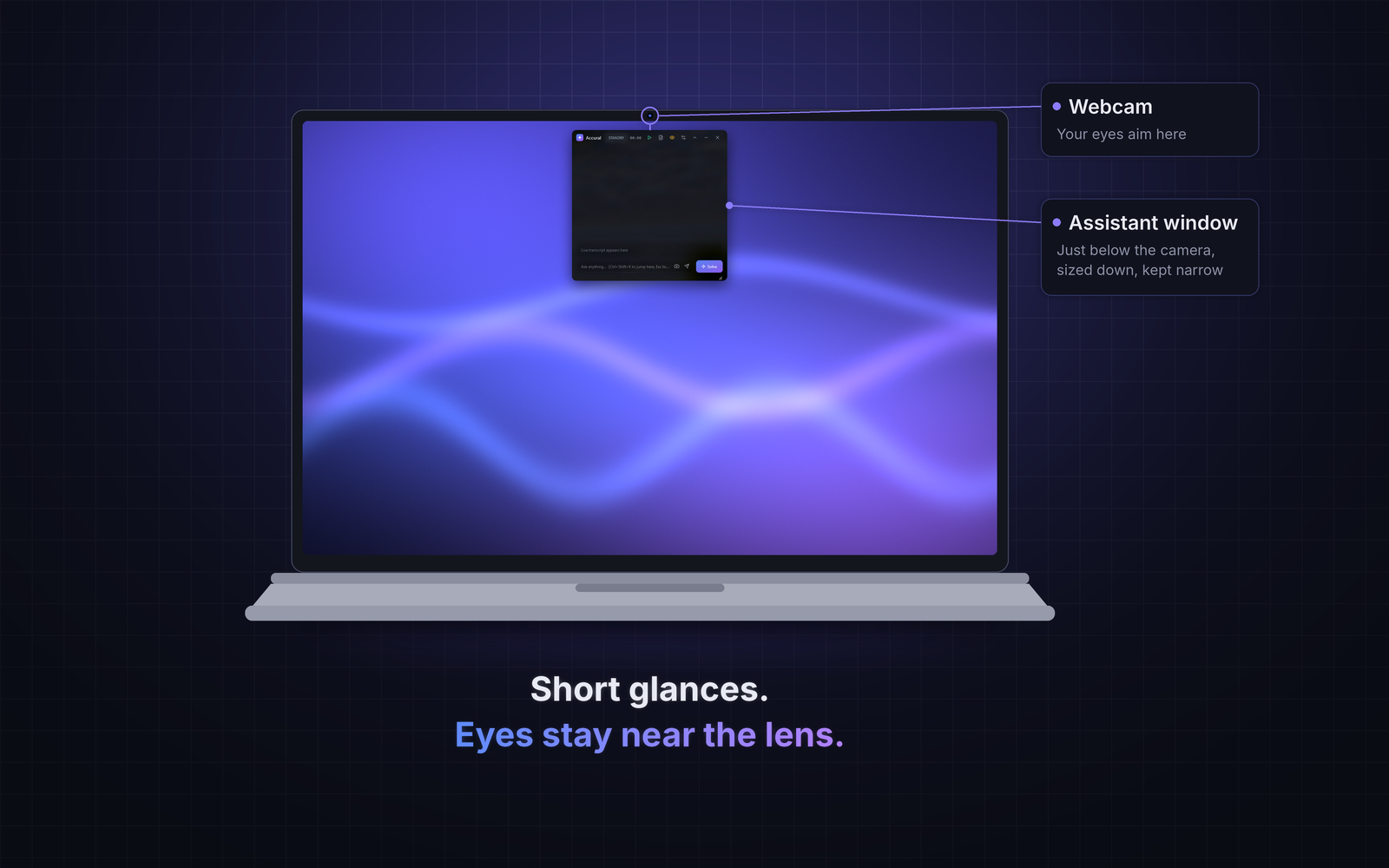
6. A small, controllable interface. You need a compact window you can place near the camera and hotkeys so your hands stay still. See our guide to where to put your AI copilot window.
7. Privacy and data handling. Where is audio processed? How long is it kept? Is it used to train models? For European clients this is not optional; read our GDPR checklist for recording and transcribing calls.
8. Honest pricing. Real-time transcription and AI responses cost money per minute. Be wary of "unlimited" plans with no stated limits.
How to get the most out of one
Prepare as if it weren't there. The tool works best when you already know your material. Use it to reinforce your knowledge, not replace it.
Give it context before the call. A short note about the client, the project and the likely questions makes suggestions far more useful.
Treat suggestions as prompts. Take the idea, then say it in your own words. Reading a suggestion word for word sounds stiff, and clients notice. Our post on answering technical questions on a client call shows a structure you can follow.
Keep your eyes near the lens. Placement matters more than most people expect.
Review the transcript afterwards. The transcript is where you catch the requirement the client mentioned in passing. Turn it into notes using a meeting notes template for developers.
Verify before you commit. Suggestions can be wrong. Never quote a price, a deadline or a technical guarantee just because the screen said so. If you're unsure, say so honestly; our guide to saying "I don't know" on a client call shows how.
Limits and responsible use
AI assistants make mistakes. They can misunderstand a question, miss context or sound confident while being wrong. They are tools for support, not authorities.
Use them responsibly:
Tell participants you're transcribing. In the EU, and in many other places, this is a legal requirement.
Respect the rules of the room. Some interviews, assessments and employers don't permit AI assistance. Follow them.
Protect client confidentiality. Check your contracts and NDAs before sending client audio to any cloud service.
Frequently asked questions
Do AI meeting assistants work with Zoom, Google Meet and Teams?
Most can, but how they connect differs. Some join as a visible bot participant; others run on your own computer and capture audio from your device. Check which method a tool uses and whether it supports every platform you need.
What is the difference between an AI note taker and a real-time copilot?
A note taker summarises a meeting after it ends. A real-time copilot works during the conversation, with a live transcript and suggested responses. Some products combine the two.
Do I need to tell people I'm using one?
Yes, in most cases. Transcribing a call usually involves processing personal data, and participants should be told. A short sentence at the start of the call is enough for most situations.
Can an AI assistant replace preparation?
No. It can jog your memory and structure your answers, but it cannot give you knowledge you don't have. The strongest users prepare thoroughly and use the tool to perform even better.
Coming up on the blog
We're publishing these guides over the next few weeks:
How to answer technical questions on a client call
25 discovery call questions for developers
How to estimate a software project on a call
Real-time transcription for Zoom, Google Meet and Teams
Meeting notes for developers (free template)
How to say "I don't know" on a client call
A GDPR checklist for recording and transcribing calls
How to prepare for a technical interview with an AI copilot
Accural is a real-time AI copilot for Zoom, Google Meet and Teams calls. It is currently invite-only. Request an invite.
Accural, your live AI copilot
Get a short suggested answer the moment a question is asked, in an overlay only you can see.