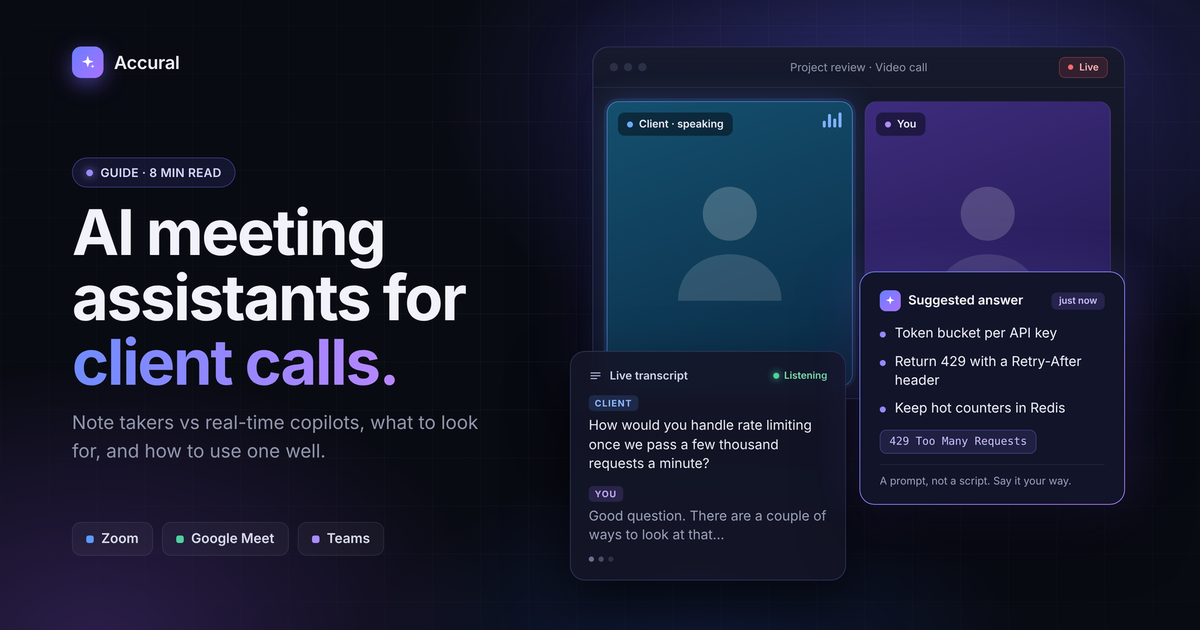
Where to put your AI Copilot so calls still feel human?
A great answer means little if your eyes keep darting to the corner of the screen. Here is how to position and size your Accural AI copilot window so you stay present, keep natural eye contact, and use suggestions as prompts rather than a script. It also covers why you should still prepare properly.
5 min read
On this page
Eyes on the Lens: Where to Put Your AI Copilot So Calls Still Feel Human
You've done the hard part. Your copilot is listening, the transcript is flowing, and the client has just asked the question you hoped they wouldn't. A suggestion appears on screen.
Then you look at it.
Your eyes slide to the corner of your monitor, you pause half a second too long, and the person on the other side notices. Not because they know what you're doing, but because they can feel that your attention has left the conversation.
Nothing is wrong with your tool. The problem is where you put it. This post is a five-minute fix.
Why your eyes matter more than your answer
On a video call, people read engagement from your eyes. When you look at the camera lens, the other person experiences it as eye contact. When you look somewhere else, such as a second monitor, the bottom of the screen, or a window in the far corner, they see it as distraction, or as reading from a script.
Most people don't consciously notice this. They just walk away with a vague impression that you seemed unsure, even if every word you said was correct.
The goal is simple: make the distance between the camera and your notes as short as possible. Then a glance at your notes looks almost the same as looking at the person.
The setup
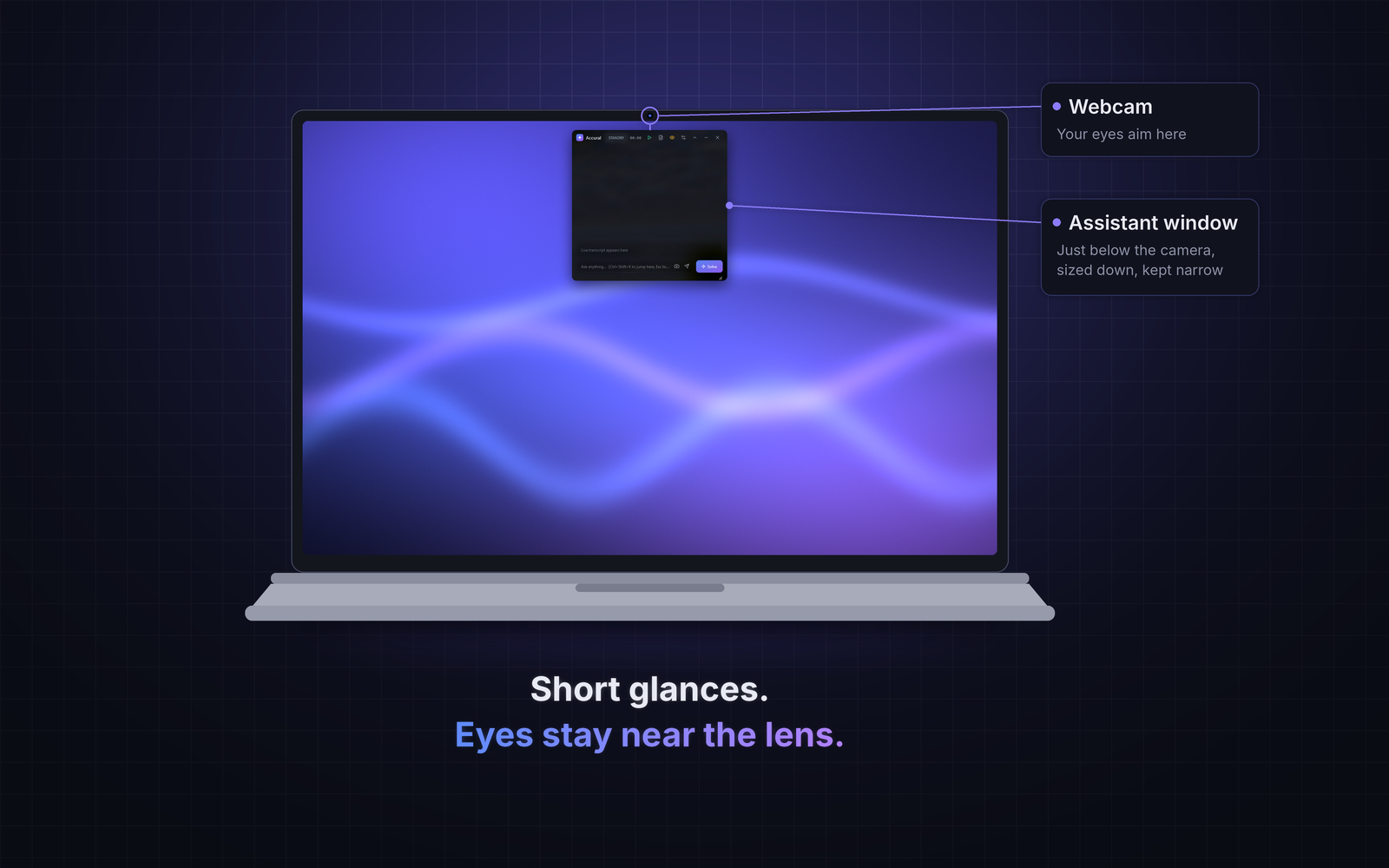
1. Park the window right under the webcam. Drag your Accural window to the top centre of your screen, directly below the camera. The closer it is to the lens, the smaller your eye movement, and the less anyone can tell you moved at all.
2. Make it small and narrow. This is the part most people skip. A wide window forces your eyes to sweep sideways across each line, and that sweep is the unmistakable "I'm reading" movement. Resize the window to a compact card, roughly a quarter of your screen width. Short lines mean short glances.
3. Bump the text size, shrink the width. If you have to lean in or squint, your whole posture changes. Make the font slightly larger and the window narrower, not the other way around. You should be able to read a line at a glance without moving your head.
4. Move the call window up as well. Put your Zoom, Meet or Teams window so that the other person's face sits just beneath your copilot, also near the camera. Looking at them and looking at your notes then happen in almost the same direction.
5. Keep your hands where they are. Reaching for the mouse breaks your posture and your focus. Learn the keyboard shortcuts instead. In Accural, for example, Ctrl+Shift+K jumps straight to the ask box, so you never have to hunt for it.
6. Practice the two-second glance. Look at the window for a second or two, take what you need, then return to the lens or the person before you start speaking. Think of it like glancing at a note on your desk: brief, calm, then back to the conversation.
Common mistakes
A big window in the middle of the screen. It fills your vision and pulls your eyes away from the camera every time you read.
A second monitor off to the side. Your head turns, and that is easy to see.
Reading suggestions word for word. It sounds stiff and loses the rhythm that makes you convincing. Take the idea, then say it in your own words.
Staying silent while you read. If you need a moment, say so: "Good question, let me think about that for a second." A short pause that you've named sounds confident.
Treating the suggestion as the answer. More on this next.
Copilot, not autopilot
This is the part that matters more than any layout tip.
A copilot is there to jog your memory, steady you under pressure, and help you structure an answer. It is not there to replace what you know. Wi-Fi drops, a suggestion misses the point, or the conversation goes somewhere nobody predicted. When that happens, only what is in your head will carry you.
So prepare first, and use the tool to drive it home:
Study before the call. Review the project, rehearse your answers out loud, and make sure you can explain your own work without any help.
Load your context. Notes about the client, the project, and the likely questions make suggestions sharper and more relevant.
Use suggestions as prompts. A reminder of a detail, a clean structure for an answer, a code example you can adapt. Then make it yours.
The strongest users are the ones who would do well without the tool and do even better with it.
Be upfront about it
Two things worth saying plainly:
Tell people you're transcribing. In the EU and in many other places, recording or transcribing a call requires telling the participants. A single line at the start of the meeting is enough.
Follow the rules of the room. Some interviews, assessments and employers don't allow AI assistance, and you should respect that. Used where it's allowed, a copilot is just a smarter set of notes. Used where it isn't, it's a risk to your reputation that no layout tip can fix.
Quick checklist
Window directly under the camera
Narrow, compact, with larger text
Call window moved up close to it
Shortcuts learned, hands still
Short glances, then back to the lens
Suggestions as prompts, not scripts
Preparation first, copilot second
Participants told, rules respected
Get these right and the technology disappears. What the client sees is someone who is focused, calm and fully present, which is what the copilot is there to help you be.
Accural is currently invite-only. If you'd like to try it on your next client call, request an invite.
Accural, your live AI copilot
Get a short suggested answer the moment a question is asked, in an overlay only you can see.